New Features in GemGuide Appraisal Software version 2.06a
Multiple Photos now print on the appraisals:
In addition to the Select Image button on the appraisal screen, there is now an additional button labeled More Images. You can select and add more images to store with the appraisal item. Version 2.06 allows two photos to print on an appraisal.
1. Click on Select Image on the Add/New Edit Appraisal window to select the primary photo for the appraisal.
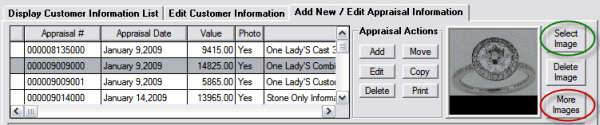
2. Click on the More Images button to select another image. You will receive an Additional Photos Window. Simply click on Add to select an additional photo. Browse to the additional photo name and then click Open.
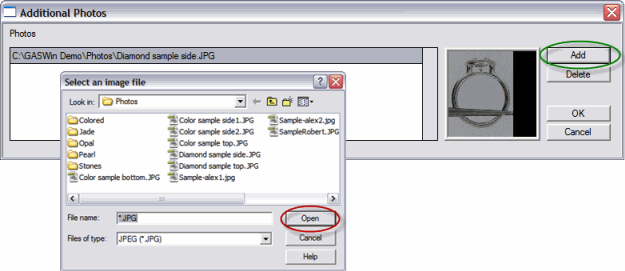
The first additional photo selected will be printed on the appraisal as the second image. You can select more than one photo in the Additional Photos window to associate with the appraisal for your reference.
If you require more than two printed photos on your appraisal, select Print and then Export to Word Processor. Your word processing program, i.e., Microsoft Word, Microsoft Works, Word Perfect, will open and bring in the entire appraisal document with photo. From here, the options are endless. You can move the photo anywhere on the document. You can import more photos such as a side view and top view, you can combine items to a single page, you can import additional pages created elsewhere, etc. Again we stress that this option, while it creates tremendous flexibility, defeats the true purpose of the software which is to do the work for you. There will be some users that will insist on this option but we always teach editing as a "last resort" for those documents that must be refined in some way.

