New Features in GemGuide Appraisal Software version 2.06a
Export Customer File/Mail Merge function
Export your customer file to do mail merge for documents such as letters and labels for appraisal customers. Options have been created that allow you to select a group of customers such as those that have old appraisals in need of updating. The export function creates the GASCusts.CSV file. It is a delimited file that lists all customers with appraisals that were dated within the time period selected. You can use this file in Microsoft Word with the mail merge feature by checking the options for Run MS Word mail merge for letters or lables or you can simply open the file using Microsoft Excel.
From the main menu click on Reports>Export Customer File/Mail Merge:
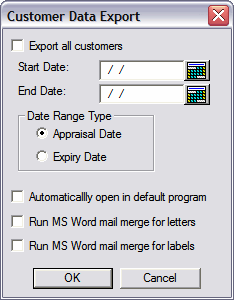
1. Checking the “Export all Customers” box will create a CSV comma delimited file that can be used in the mail merge function of any word processing program or opened using any spreadsheet program such as Microsoft Excel. The CSV file is saved as file name GASCusts.CSV and saved in C:\GASWIN\Reports.
2. Checking the “Automatically open in default program” will not only create and save the customer file, but also opens the customer file in your default program that is identified in your system folder options for the CSV file extension, i.e., Microsoft Excel.
3. The “Run MS Word mail merge for letters” option uses the CustomerExportLetterTemplate.doc file as the letter template for the mail merge with the customer name and address export file. TheCustomerExportLetterTemplate.doc file is saved in the GASWIN program installation folder, i.e. C:\GASWIN. You can make any changes to the document file. The text provided can be updated to include your company information and any other changes specific to your needs. You must save the merged document with the same name and location as originally provided,CustomerExportLetterTemplate.doc, for the auto mail merge function to initiate.
4. The “Run MS Word mail merge for labels” option uses the CustomerExportLabelsTemplate.doc file as the label template for the mail merge with the customer name and address export file. The CustomerExportLabelsTemplate.doc file is saved in the GASWIN program installation folder, i.e., C:\GASWIN. The label layout can be updated with any changes specific to your needs. You must save the merged label document with the same name and location as originally provided, CustomerExportLabelsTemplate.doc, for the auto mail merge function to initiate.
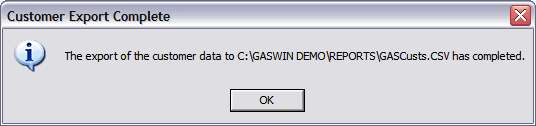
After choosing your options in the Customer Data Export window, click on OK . An export has completed message will appear. Click on OK.
If you have checked the options to open the file or Run mail merge, your customer file will open within the corresponding program, i.e., word processing or a spreadsheet program. You will receive a report generation is complete message when all mail merge letters or labels are complete.